Get this PC ready
for remote help.
Start here on the Windows PC you want your Administrator to connect to. Download the orange Remote Client app, then follow the pictures below.
Download Remote ClientWindows 11 · 64-bit PC · No download code or sign-in needed
Already installed? Go to the PIN step ↓A little help, every step of the way.
Keep this page open while you install. Click a picture to see it larger.
Download it, then open the file
Click the orange Download Remote Client button above. Wait for the download to finish, then click the file with this name:
Install-Remote-Client.exeLook for the Downloads arrow near the top-right corner of your browser. Click it, then click the file name.
Follow the setup window
If Windows asks “Do you want to allow this app to make changes?”, check that the publisher is Ingenious, LLC, then choose Yes.
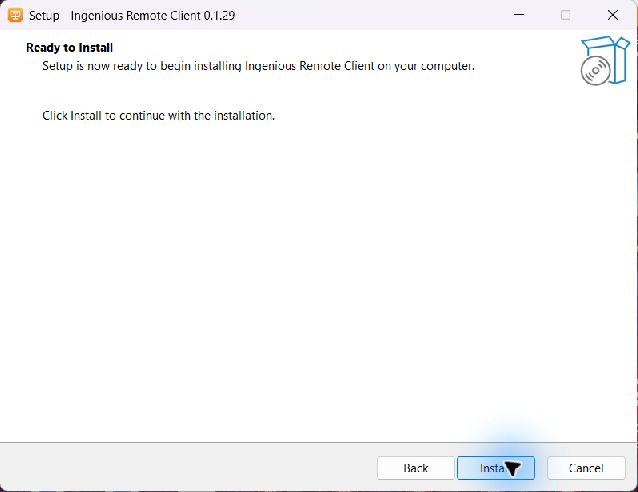
In the setup window, read the information and click Next. When you see Ready to Install, click Install and wait for it to finish.
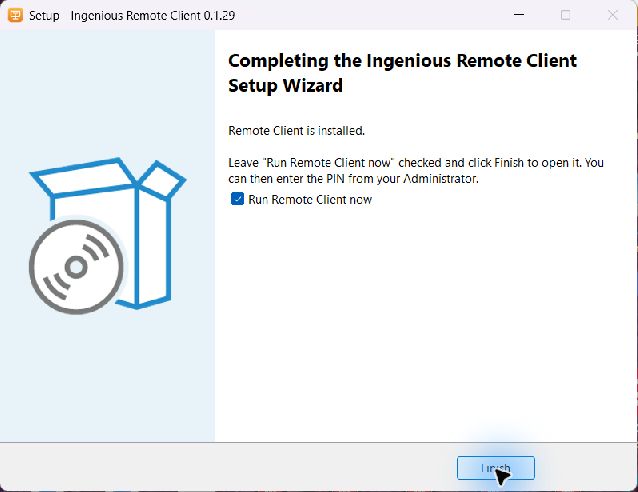
Leave “Run Remote Client now” checked
On the last setup screen, leave the small box beside Run Remote Client now checked. Then click Finish. The orange Remote Client app opens for you.
Enter the PIN from your Administrator
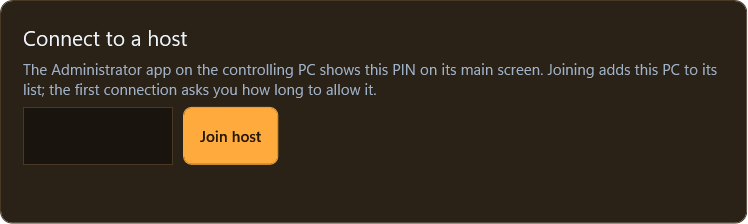
Ask the person helping you for the 5-character PIN shown in their Administrator app. In your orange Remote Client app, find Connect to a host. Type that PIN in the empty box, then click Join host.
Copy capital letters, small letters and numbers exactly. If you can't see the PIN box, scroll down inside the app.
Or enter your PIN here
If Remote Client is already installed, we can open it and fill in the PIN for you.
If your browser asks to open Remote Client, choose Open. If nothing happens, install the app using the steps above, then try this button again.
Need a hand?
Windows asks for an administrator password
Ask the person who manages this PC to help with the installation. If you don't know the password, let your Administrator know what the message says.
The PIN doesn't work
Ask your Administrator for the PIN currently shown in their app. PINs change every few minutes. Check all five characters, including capital and small letters.
I closed the orange Remote Client window
Click Start, type Ingenious Remote Client, then click its orange icon. Opening it again brings back its window, even if it is already running.
Administrator download · for the person giving help
Install this on the PC you control from. It opens to the large PIN you give the other person. For the PC receiving help, use the orange Remote Client download at the top of this page.
Enter the separate 5-character Administrator download code. Capital and small letters matter.